Why is Honista not working? Start with the symptom
The fastest fix depends on what still works. If the official Instagram app and website also reject your password, show a checkpoint, or fail to load the account, the problem is probably not limited to Honista. Use the Honista login guide and official account recovery before changing APK files.
If only Honista fails while Instagram works normally, focus on the app build, cache, Android WebView, storage, permissions, battery restrictions, or a damaged installation. If several apps fail on the same connection, test another network before changing Honista settings. This separation prevents a destructive reinstall from hiding the real cause.
- Stuck on initializing or loading: test network, DNS, date and time, then force stop the app.
- Crashes immediately: check Android version, 64-bit compatibility, free storage, cache, and the installed APK source.
- Login loop or challenge: test the same account in official Instagram and complete account recovery there.
- Media download fails: confirm storage permission, free space, the destination folder, and whether the post permits access.
- Notifications arrive late: remove battery restrictions carefully and verify Android notification permission.
| Symptom | Likely layer | First safe check |
|---|---|---|
| Initializing never finishes | Network, DNS, server, date/time | Switch between Wi-Fi and mobile data |
| App closes on launch | Compatibility, cache, damaged install | Restart, check storage, then clear cache |
| Login returns to the same screen | Account, WebView, session | Test official Instagram and update WebView |
| Blank feed or missing media | Network filter, session, server response | Disable VPN/private DNS temporarily |
| Download button does nothing | Permission, storage, feature state | Check Files and media permission |
| No notifications | Android permission or battery policy | Allow notifications and unrestricted background use |
12 Honista not working fixes, from safest to most disruptive
Use the order below. After each step, open Honista and reproduce the original problem once. Do not apply every fix at the same time: if the app starts working, knowing which change helped makes future failures easier to diagnose.
Before clearing storage or reinstalling, make sure you can sign in to Instagram through an official channel and that your two-factor method is available. Clearing Honista data removes the local session and app preferences; reinstalling may also expose you to a wrong or renamed APK if you do not return to the same verified source.
- Check whether Instagram is reachableOpen instagram.com or the official app. If both fail, wait for service recovery or resolve the account problem first.
- Switch networksMove from Wi-Fi to mobile data or the reverse. Temporarily disable VPN, ad-blocking DNS, firewall rules, and data-saving modes that can block required hosts.
- Set automatic date and timeIncorrect time can break TLS connections, login tokens, and two-factor challenges. Enable network-provided time and time zone.
- Force stop and reopenUse Android App info to force stop Honista, wait a few seconds, and launch it again instead of repeatedly tapping the icon.
- Restart AndroidA restart clears stuck network, WebView, media, and background processes without deleting Honista data.
- Check free storageKeep at least 1 GB free for downloads, temporary media, extraction, and app updates. A nearly full device can crash or freeze without a clear message.
- Clear cache onlyOpen Settings > Apps > Honista > Storage and clear cache. Do not clear storage yet; cache removal is the lower-risk test.
- Update Android System WebView and ChromeLogin and embedded web content can depend on WebView. Install available updates from the device's normal app store and restart.
- Review permissionsAllow only the permissions needed for the failing feature, such as notifications or media storage. Do not grant unrelated permissions as a generic fix.
- Remove battery restrictionsFor missing notifications or interrupted downloads, allow background activity for Honista. Restore stricter settings if the change does not help.
- Clear app storageUse this only after confirming account recovery. It signs you out and resets local preferences, so test login again before reinstalling.
- Reinstall from the verified sourceRemove the broken installation only after recording its version and source. Download the current file through this site's verified homepage path, then follow the installation guide.
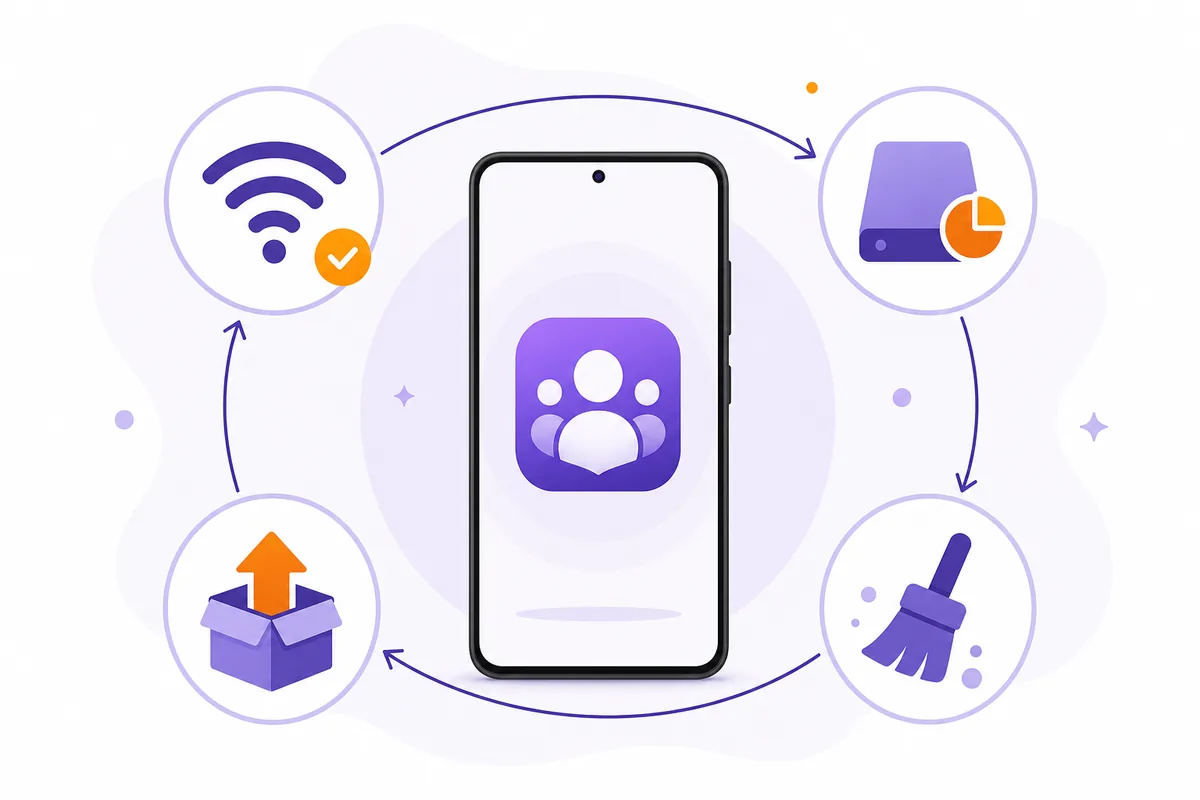
Fix Honista stuck on initializing or a blank loading screen
An endless initializing screen usually points to a request that never completes. Change one network condition at a time: disable VPN or private DNS, try mobile data, confirm automatic date and time, and check whether instagram.com opens. If the app works on one connection but not another, the network path is stronger evidence than reinstalling the APK.
Next, force stop Honista and clear cache. Update Android System WebView and Chrome because authentication or embedded content can fail when their components are outdated. On devices with aggressive battery management, allow temporary unrestricted background use while testing. If the same screen persists on multiple networks after a restart, the service or current Honista build may be incompatible with a server-side change; repeated data deletion will not repair that condition.
Do not install a random 'fixed' APK from a video description, chat attachment, shortened link, or mirror. A relevant video can demonstrate a sequence, but it cannot establish publisher identity or file integrity. Keep the actual APK decision tied to the first-party Honista page and final app.honista.com host.
- Compare two networks before changing the app package.
- Use automatic time and time zone.
- Update WebView and Chrome through the normal store.
- Treat a widespread current outage as a wait-and-recheck condition.
Crashes, login loops, downloads, and notification problems
For an immediate crash, verify that the device runs Android 9 or newer and supports 64-bit arm64 applications. The current full Honista file is not presented as a 32-bit build. A package copied from another device, partially downloaded file, signature conflict, or restored app backup can also crash before the interface appears.
For login loops, complete password, checkpoint, email, phone, and two-factor recovery through Instagram or Meta. Do not import session files, cookies, recovery codes, or account backups into a third-party helper. If the official app signs in but Honista does not, clear Honista cache, update WebView, and then clear Honista storage only when you are ready to sign in again.
For media downloads, check Files and media permission, free storage, the selected folder, and whether the media is actually available to the account. Disappearing stories, private posts, restricted media, and server changes cannot always be repaired by granting broader permissions. For missing notifications, allow Android notification permission and background activity, then check Honista's own notification controls; avoid disabling all battery protection permanently.
| Problem | Do | Do not |
|---|---|---|
| Crash on launch | Check arm64, storage, cache, and package source | Install an older mirror immediately |
| Login loop | Recover the Instagram account officially | Share session files or 2FA codes |
| Media download fails | Check permission, space, folder, and post access | Grant every permission blindly |
| Notifications delayed | Allow notifications and test background activity | Disable all Android protections permanently |
| Blank feed | Test network, DNS, time, and official Instagram | Assume the APK is the only cause |
When to update or reinstall Honista V13.0
Reinstall only when network tests, restart, storage, cache, WebView, and permissions do not resolve an app-only failure. On July 30, 2026, the accessible first-party download page still identified the full build as V13.0 for Android 9+ and arm64-v8a. Its current page shows an Instagram base 426 revision updated July 15, 2026, while the changelog preserves the initial V13 release record from June 17 with base 406. These are revision records for the same V13 family, not evidence of a V14 release.
The stable first-party file URL remains Honista_v13.0__x64.apk. A byte-range request returned HTTP 206, application/octet-stream, ZIP/APK magic, and a total size of 160,332,392 bytes, about 152.9 MiB. Use the Honista update guide when preserving settings matters, or the installation guide for a clean install.
If Android reports 'App not installed' or a package conflict, do not turn off Play Protect or device security as the first response. Record the installed version and source, verify that the new file is complete, and decide whether an in-place update or clean install is appropriate. A signature mismatch often means the packages came from different signing sources.
- Current verified family: Honista V13.0, Android 9+, arm64-v8a.
- Current download-page revision: Instagram base 426, updated July 15, 2026.
- Verified file: 160,332,392 bytes, first-party app.honista.com host.
- Download CTA: use the verified homepage path or the stable first-party file URL, never a guessed CDN path.
Stop troubleshooting and secure the account when these signs appear
Stop testing Honista and switch to official Instagram or Meta account tools if you see an unknown login, password-reset message you did not request, changed email or phone details, repeated checkpoint warnings, or two-factor prompts from an unfamiliar location. The priority becomes account containment, not restoring the modified client.
Change the Instagram password through an official channel, review active sessions, remove unfamiliar devices, confirm recovery email and phone details, and refresh two-factor backup codes. If you installed an APK from an unknown mirror, remove it and run the device's normal security checks. Do not claim that a clean scan proves the file or account is safe; monitor both the device and account for unusual behavior.
If Honista remains broken while the official Instagram app works, the practical fallback is to use the official app until a verifiable Honista update or service recovery appears. A feature loss is inconvenient, but repeated reinstalls from untrusted sources create a larger privacy and account risk.
- Unknown login or account-detail change.
- Repeated checkpoint or suspicious-session warning.
- APK source, filename, size, or final host does not match the verified record.
- A fix asks for session cookies, 2FA codes, or disabled device security.
Honista Not Working FAQ
Why is Honista stuck on initializing?
The app may be waiting on a blocked network request, incorrect device time, an outdated WebView component, a service outage, or an incompatible current build. Test another network and official Instagram before reinstalling.
Will clearing Honista cache log me out?
Clearing cache normally preserves the account session, while clearing app storage usually signs you out and resets local settings. Confirm account recovery before clearing storage.
Why does Honista crash as soon as it opens?
Common causes include an unsupported 32-bit device, low storage, damaged cache, a partial APK, a signature conflict, or incompatibility after an Android or Instagram-side change.
How do I fix Honista login not working?
Test the same account in official Instagram, complete password or 2FA recovery there, update Android System WebView, clear Honista cache, and clear app storage only when you can sign in again.
Should I download an older Honista APK to fix the app?
Not as a first step. Older builds may be incompatible or come from unverifiable mirrors. Use the current first-party source unless a specific rollback is documented and the file identity can be verified.
Is Honista down for everyone?
A local test cannot prove a global outage. Compare multiple networks, official Instagram, recent user reports, and the first-party Honista channels. If many users report the same current failure, wait before destructive troubleshooting.